![full-logo-one-line-transparent.png]](https://portal.agency-focus.com/hs-fs/hubfs/full-logo-one-line-transparent.png?height=40&name=full-logo-one-line-transparent.png)
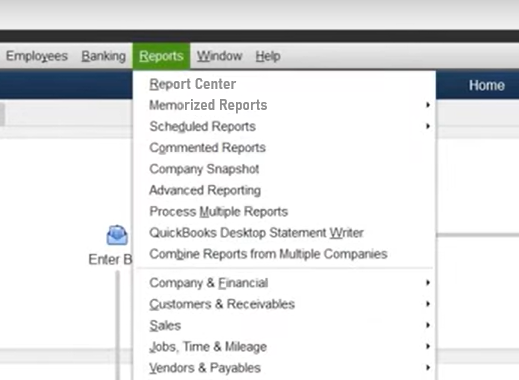
Step 1 - Open the Reports Menu
- Click the option labeled 'Reports' in the top menu
- You should now see a dropdown list of options like so:
Step 2 - Look at 'Company & Financial' report options
- Select the category labeled 'Company & Financial' from the dropdown
- In the submenu that pops up, click 'Profit & Loss Detail'

Step 3 - Set your date range
- Find the dropdown at the top labeled 'Dates'
- Select 'Custom' from the dropdown
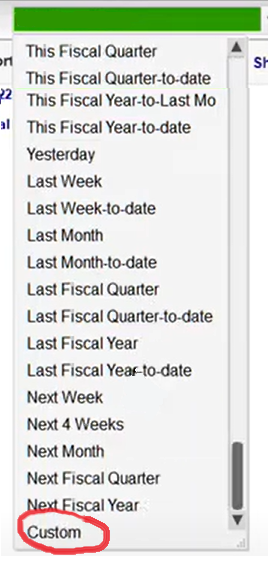
- Use the date fields to set your date range:

- Note: Please refer back to the data request form(s) you received if you're not sure what dates to enter here. If you're still unsure, please reach out to your consultant or Thomas Mann (thomas@agency-focus.com) for clarification -- we're here to help!
Step 4 - Export to Excel
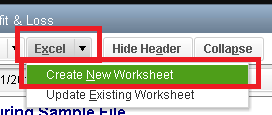
- Find the dropdown that says 'Excel' in the top navigation and click it
- Select 'Create New Worksheet' from options:
- A popup should appear with some options
- If you see a message that says your report has too many columns, select "Advanced...", then uncheck the Space between columns checkbox. Select OK.
- Click 'OK' to proceed with export
Repeat steps 3-4 as needed until you have all of the reports you need.
Thank you for reading!
Please let us know if you're struggling with this. A member of our team would be happy to meet with you and discuss further.
For additional help, please reach out to our COO Thomas Mann. You can schedule a meeting with him using his digital calendar or email him directly (thomas@agency-focus.com).