![full-logo-one-line-transparent.png]](https://portal.agency-focus.com/hs-fs/hubfs/full-logo-one-line-transparent.png?height=40&name=full-logo-one-line-transparent.png)
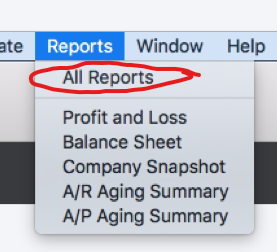
Step 1 - Go to the Report dashboard
From the top navigation, select 'Reports' and click the option that says 'All Reports'
Step 2 - Find the Profit & Loss Detail report
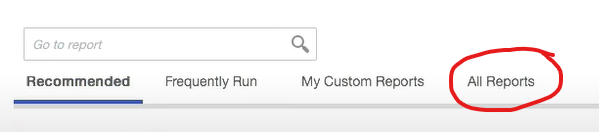
- On the reports page, find the tab labeled 'All Reports' and click it
- This page will give you a comprehensive list of the reports you can run
- Click on the report labeled 'Profit and Loss Detail'
Step 3 - Set Date Range
- In the report viewer, you can specify the exact date range of the report by:
- Select 'Custom' from the dropdown labeled 'Transaction Date'

- Enter the start and end dates for your report into these input boxes:

- Click

- Select 'Custom' from the dropdown labeled 'Transaction Date'
Step 4 - Export to Excel
At the top of the report viewer, find the button that says 'Excel' and click it:

From there you should be able to save the file to your computer in Excel (.xls, .xlsx. or .csv format).
Repeat steps 3-4 as needed until you have all of the reports you need.
Thank you for reading!
Please let us know if you're struggling with this. A member of our team would be happy to meet with you and discuss further.
For additional help, please reach out to our COO Thomas Mann. You can schedule a meeting with him using his digital calendar or email him directly (thomas@agency-focus.com).