![full-logo-one-line-transparent.png]](https://portal.agency-focus.com/hs-fs/hubfs/full-logo-one-line-transparent.png?height=40&name=full-logo-one-line-transparent.png)
This article is intended to teach you how to download a book of business report from your Applied Epic management system.
These are not official instructions and although we've tried our best, may not fulfill your exact needs. If you have any questions not answered by this article, you may want to call Applied Systems directly (800-999-6512) or submit a ticket through their website.
Instructions
Step 1
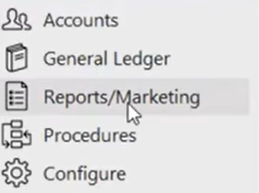
Open the Reports/Marketing page by selecting it in the sidebar:
Step 2
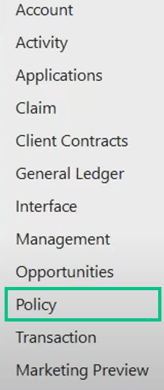
Click "Policy" in the sidebar to open up the policy report menu:
Step 3
Click the report called "Book of Business – Policy Book" and then click the pencil icon to edit it: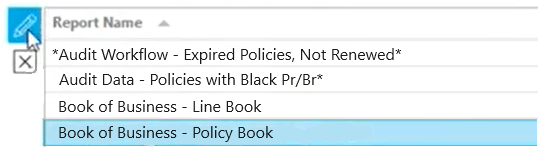
(Your list of reports may not look exactly the same)
Step 4
Click Modify Criteria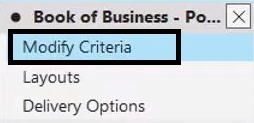
It will open up the criteria page, which should look similar to this: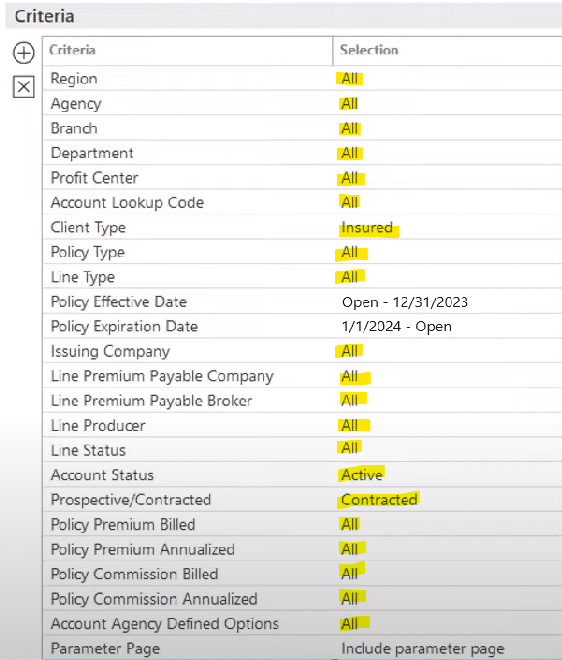
Please make sure that the criteria highlighted in yellow match ours. There is no need to adjust the policy effective date of policy expiration date, as long as the dates are current.
Step 5
Select Delivery Options in the sidebar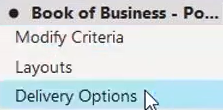
Step 6
Click the pencil icon next to <Current User> in the Report Recipients section: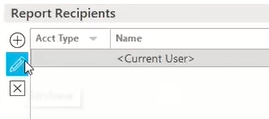
A new dialogue will open up:
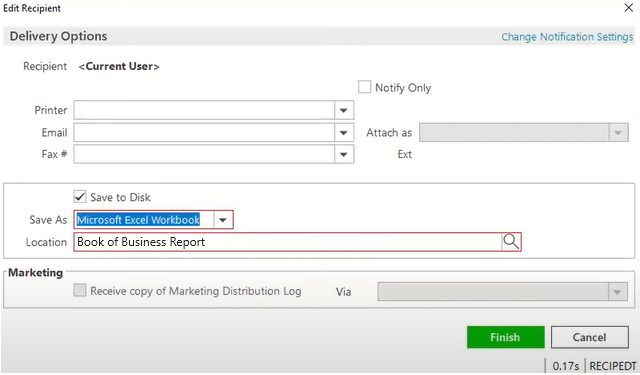
Click the checkbox next to "Save to Disk", then change the Save As dropdown to "Microsoft Excel Workbook".
Next, type "Book of Business Report" in the Location field, and click the "Finish" button at the bottom.
Step 7
To download your report, you will need to click Actions in the top navigation, and select "Generate Report":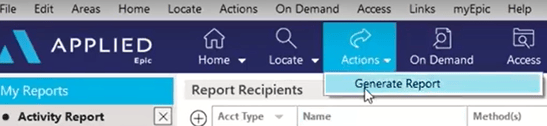
This will open up the file explorer:
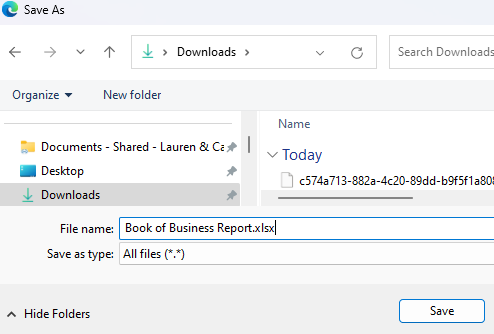
Navigate to the folder you'd like to save the report to and click the "Save" button.
Epic may then ask you if you'd like to immediately open the file. You can select either option.
Success! You have downloaded your book of business report.